

How to display Popular Posts by day, week, month, and all times in WordPress must be a necessity for every blog and blogger.
As a blogger, I am also in search of such things that can make my blog more informative and user-friendly. In this article, I will show you how to add a tabbed widget with popular posts by day, week, month, and all-time in your WordPress sidebar without editing a single line of code.
How to Add a Tabber with WordPress Popular Posts
Whenever you want to add the mentioned title to your blog, normally you have to work on lots of code, jQuery code, and other CSS, and of course, this is a much time taking and maybe a little bit difficult ( maybe for a blogger like me ). But do not worry, WordPress, if you are the webmaster, then you need not think so; I can help you regarding this with simple and easy steps.
STEP 1: First of all, you need to install the two Plugins given below:
WordPress Popular Posts and Tabber Tabs Widget.
STEP 2: Now, see your widget screen ( Appearance > widgets). Here you will see two widgets added (one is called Tabber Tab Widgets and the other is called WordPress Popular Posts).
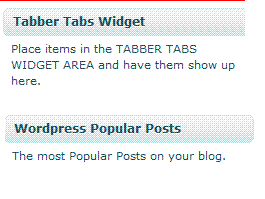
STEP 3: You will see a new widget on the right side of your widget bar by the name of “Tabber Tabs Widget Area”
STEP 4: Drag the widget of WordPress Popular Posts in this location
STEP 5: Set the title to Daily, time range to Last 24 hours ( today), select your sorting options, how many posts you want to show, and save the widget.
STEP 6: Repeat this process 3 more times(by dragging each time the WordPress popular posts in the same Tabler Tab widget area), so you can have one tab for each time range (daily, weekly, monthly, all-time). The final view should look like the image below: 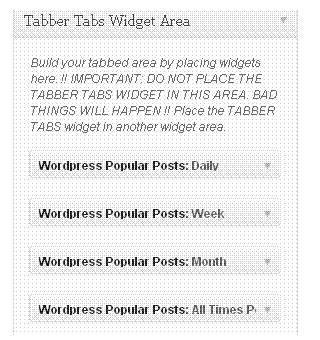
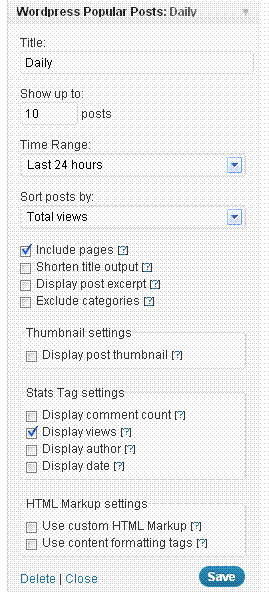
STEP 7: Now search from the widget lists, you will also find a widget by the name “Tabber Tabs widget ” (usually at the left side of your widget page)
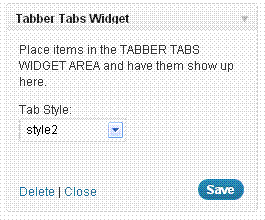
STEP 8: Drag the above-mentioned Tabber Tabs widget into the area of your sidebar (Primary, Main, Footer, or where you want ) and select the Styles you want and save it.
Now your blog is ready to show the widget, just see and enjoy as I have added.
Source:.wpbeginner