
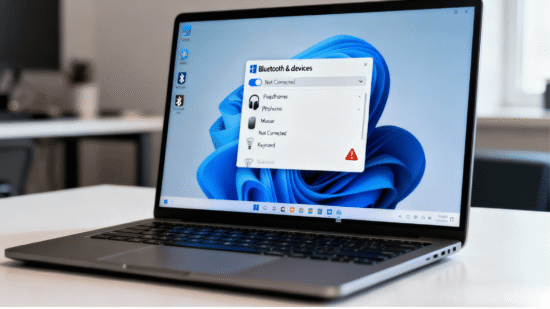
Bluetooth problems on Windows 11 can feel confusing and irritating—especially when everything was working fine just moments ago. One minute, your wireless headphones, mouse, keyboard, or speaker connects instantly, and the next moment, Windows refuses to detect the device, keeps disconnecting, or shows Bluetooth as unavailable altogether. For many users, this happens right after a Windows update, system restart, or laptop sleep, making it seem like something serious has gone wrong.
The good news is that most Bluetooth issues in Windows 11 are software-related, not hardware failures. Small glitches in system services, drivers, power settings, or device pairing can silently break the connection without showing a clear error message. That’s why replacing devices or reinstalling Windows is usually unnecessary.
Learn to use an Android phone as a Bluetooth Mouse or Keyboard in Windows
Bluetooth Not Working on Windows 11? Here are the Proven Fixes:
In this guide, you’ll find 10 proven fixes that real users have successfully used to restore Bluetooth on Windows 11. These solutions start with quick, beginner-friendly checks and gradually move toward more advanced fixes—so you can stop as soon as the problem is solved. No technical expertise required, just clear steps that work.
1. Make Sure Bluetooth Is Turned ON:
It sounds obvious, but Windows 11 sometimes turns Bluetooth off automatically after updates or power changes.
Check this first:
- Press Windows + I > go to Bluetooth & devices
- Make sure the Bluetooth toggle is ON
- If it was off, turn it on and wait 10–15 seconds
If the toggle was already on, move to the next fix.
2. Turn Bluetooth Off and On Again:
A quick reset often clears temporary glitches.
Steps:
- Go to Settings → Bluetooth & devices
- Turn Bluetooth OFF
- Wait 30 seconds
- Turn it ON again
Now try reconnecting your device.
3. Restart Your Bluetooth Device:
Sometimes the problem isn’t Windows—it’s the device.
- Power off your Bluetooth device completely
- Wait 10–20 seconds
- Turn it back on
- Put it into pairing mode
Then try connecting again from Windows.
4. Remove the Device and Pair It Again:
If a device shows as “Connected” or “Paired” but doesn’t work, re-pairing usually fixes it.
How to do it:
- Go to Settings → Bluetooth & devices
- Find your device in the list
- Click three dots → Remove device
- Restart your PC
Add the device again using Add device → Bluetooth
5. Restart Bluetooth Services (Very Effective):
Windows Bluetooth relies on background services that can fail silently.
Steps:
- Press Windows + R
- Type msc and press Enter
- Find: Bluetooth Support Service > Bluetooth User Support Service
- Right-click each → Restart
- Set Startup type to Automatic
This fix solves many “Bluetooth not working at all” cases.
6. Run the Built-in Bluetooth Troubleshooter:
Windows 11 includes a diagnostic tool that can detect common problems automatically.
Steps:
- Go to Settings → System → Troubleshoot
- Click Other troubleshooters
- Find Bluetooth → click Run
Follow the on-screen instructions and apply any suggested fixes.
7. Update or Reinstall Bluetooth Drivers:
Outdated or corrupted drivers are one of the most common causes.
- Update the driver:
Right-click Start → Device Manager - Expand Bluetooth
- Right-click your Bluetooth adapter → Update driver
- Choose Search automatically for drivers
If updating doesn’t help: - Right-click the adapter → Uninstall device
Restart your PC
Windows will reinstall the driver automatically.
8. Check Airplane Mode and Power Settings:
Bluetooth won’t work if Airplane Mode is enabled—or if Windows is aggressively saving power.
- Check Airplane Mode:
- Press Windows + A
- (Make sure Airplane mode is OFF)
- Disable power saving for Bluetooth:
- Open Device Manager
- Right-click your Bluetooth adapter → Properties
- Go to Power Management
- Uncheck Allow the computer to turn off this device
- Click OK
9. Install Windows 11 Updates:
Microsoft frequently fixes Bluetooth bugs through updates.
Steps:
- Go to Settings → Windows Update
- Click Check for updates
- Install all available updates
- Restart your PC
Many Bluetooth issues disappear after a proper update.
10. Check for Hardware Problems:
If none of the fixes work, the issue may be hardware-related.
- Try connecting a different Bluetooth device
- Test your device on another PC or phone
- If Bluetooth doesn’t appear in Device Manager, your adapter may be disabled or faulty
For laptops, updating BIOS or chipset drivers from the manufacturer’s website can also help.
Final Thoughts:
Bluetooth problems on Windows 11 are common—but rarely permanent. In most cases, restarting services, re-pairing devices, or updating drivers solves the issue quickly. Start with the simple fixes first, then move to advanced ones only if needed.