Tag: twitter

  • How to block someone on Twitter Account

    Twitter is an easy way to share thoughts and updates with your friends and even common people. But it may become a nightmare when some of your friends are just making fun of you, or you may not be happy with their tweets. It may also be possible that you don’t like self-promoting posts, spam, and bots, and don’t want to interact with them. There is a way to just ignore, make your account private, or use the Twitter mute button and let to see other friends and fellow tweets.

    It sounds easy, but it might not. However, there is a full and final way to block them and get rid of their replies and tweets again.
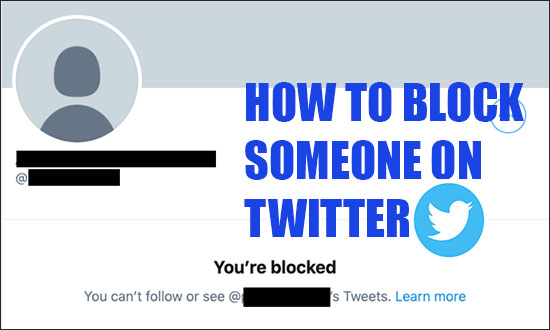
    block on twitter

    Two Ways to block someone on Twitter:

    There are two ways to block a person on Twitter.

    1- Block someone from their Twitter:

    • Click the three horizontal dots located at the top of a tweet from the account you wish to block.
    • Click Block and select Block to confirm.

    2- Block a Person from their Profile:

    • Go to the profile page of the person whose Twitter account you want to block.
    • Click the more icon on his profile page.
    • The tap block from the menu appeared.

    What happens when you block a person on Twitter:

    After going through the article in detail, it will seem quite easy to block him on Twitter, but you have to face some consequences of using this feature:

    • When you block someone then the user automatically unfollows you, and alternatively, you both will be unable to see each other’s tweets.
    • The tweets will not appear on both profiles or timelines, even if you or another person tags you, until you again unblock/follow each other.
    • You can’t see each other’s followers, likes, following, or lists along tweets.
    • You will be unable to send even direct messages to each other.

    In short, you both will be unavailable to each other, except if you have a public account, then the other person will be able to see your activities on Twitter.

    Read Also: How to block someone on WhatsApp

    Blocking a Twitter account is not an ideal solution. You can secure your account as well as avoid sharing your personal information.

  • Use twitter Mute button to stop unwanted tweets on windows and smartphones

    Use twitter Mute button to stop unwanted tweets on windows and smartphones

    While using social media sites, especially Facebook and Twitter, you may come across some of the users whose activities may irritate you and you want to get rid of them or simply do not want to see their activities on your timeline.mute people on twitter Although Facebook has the option to unfriend or block the activities of these users on your timeline, this option was not available at the world’s second-largest Social media site Twitter. But now Twitter has introduced this function through which the user can stop unwanted tweets easily on their windows and smartphones by using the Mute button.

    The most interesting part of this Mute button is the other user will not notice that you have blocked its tweets. Also, you can stop the tweets of that person also that you do not follow.

    Read Also: How to disable Facebook timeline and get old profile back

    & Also: 2 simple ways to customize your Facebook Updates

    How to use the Twitter mute button to stop unwanted Tweets on windows and smartphones:

    Although the simple solution is to unfollow that person, by doing this the person will get notified so here is the simple and one-click solution to using the mute button function.

    1. Sign in to your Twitter account and go for the user whose tweets you want to stop.
    2. Click on the user name of that person and wait for the new windows to have a Twitter profile.
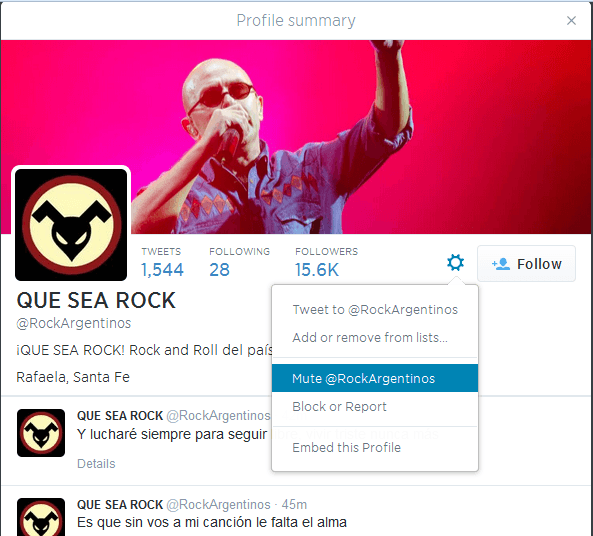
    3. Click on the gear icon and next on the mute.

    Twitter mute option


    Read Also: How to Remove Windows Genuine Advantage Notification From Your Computer

    You can also use a quick way to mute tweets

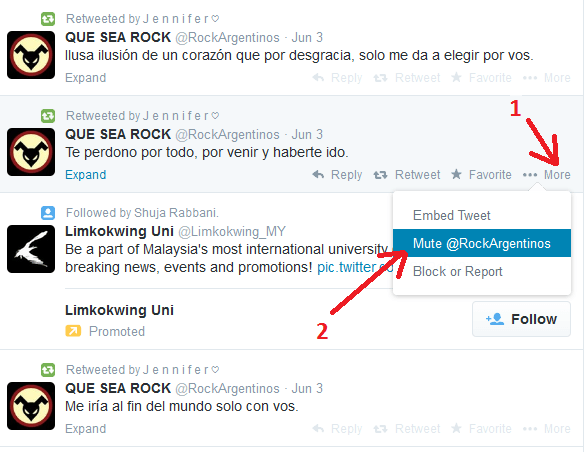
    1. Just repeat step 1 described above and move your pointer to the “more” option.
    2. Click on the mute option in the dropdown.

    Twitter Mute button to stop unwanted tweets

    So you have done, you can un-mute the user easily whenever you want.

    Don’t miss: How To Navigate Twitter like a pro with keyboard shortcuts

  • How To Navigate the Twitter with Keyboard Shortcuts

    How To Navigate the Twitter with Keyboard Shortcuts

    It is time to navigate Twitter with keyboard shortcuts. now you need not do much effort to move your cursor but just have fun with the clicks of the keyboard and you will quickly access some great features.

    Whenever we talk about the top social media sites, Twitter has a high Google Page Rank, even then Facebook and StumbleUpon and still going up.

    So let’s talk about the previous posts in which the readers of this blog have already gone through  the Gmail keyboard shortcuts, and to continue this, I have collected a list for Twitter

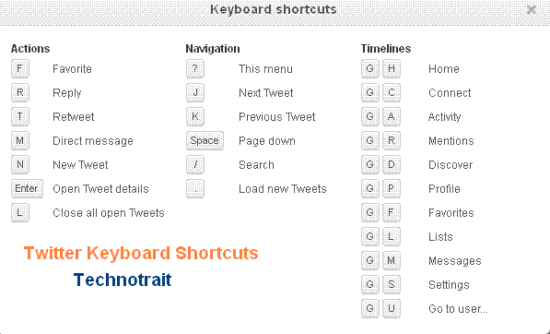
    twitter keyboard shortcuts

    And after reading today’s post, we can operate Twitter even without the mouse, and it will explore such options that may not be in our sight.

    Twitter Keyboard Shortcuts:

    The following is the list that you can use in navigation and timeline, and much more.

    Remember one thing: in order to access these keywords, you must be logged in to your Twitter page.

    Keys

    Action

    FFavorite
    RReply
    TRetweet
    MDirect Message
    NNew Tweet
    EnterOpen Tweet Detail
    LClose all open Tweets
    ?This Menu
    JNext Tweet
    KPrevious Tweet
    Space barPage Down
    /Search
    .Load New Tweets
    G + HGo to Home
    G + CConnect or Interactions
    G + AActivity going on
    G + RMentions
    G + DDiscover new trends on the page
    G + PGo to Profile
    G + FGo to Favorite
    G + LGo to the List of Subscribers to
    G + MGo to Messages
    G + SGo to Settings
    G + UGo to Specific User

    You can use the small letters alphabet to use the above-stated commands.

    Note: the Shortcut keys for Twitter can only work for Twitter.com and cannot be used for the Twitter app.

    Read Also: